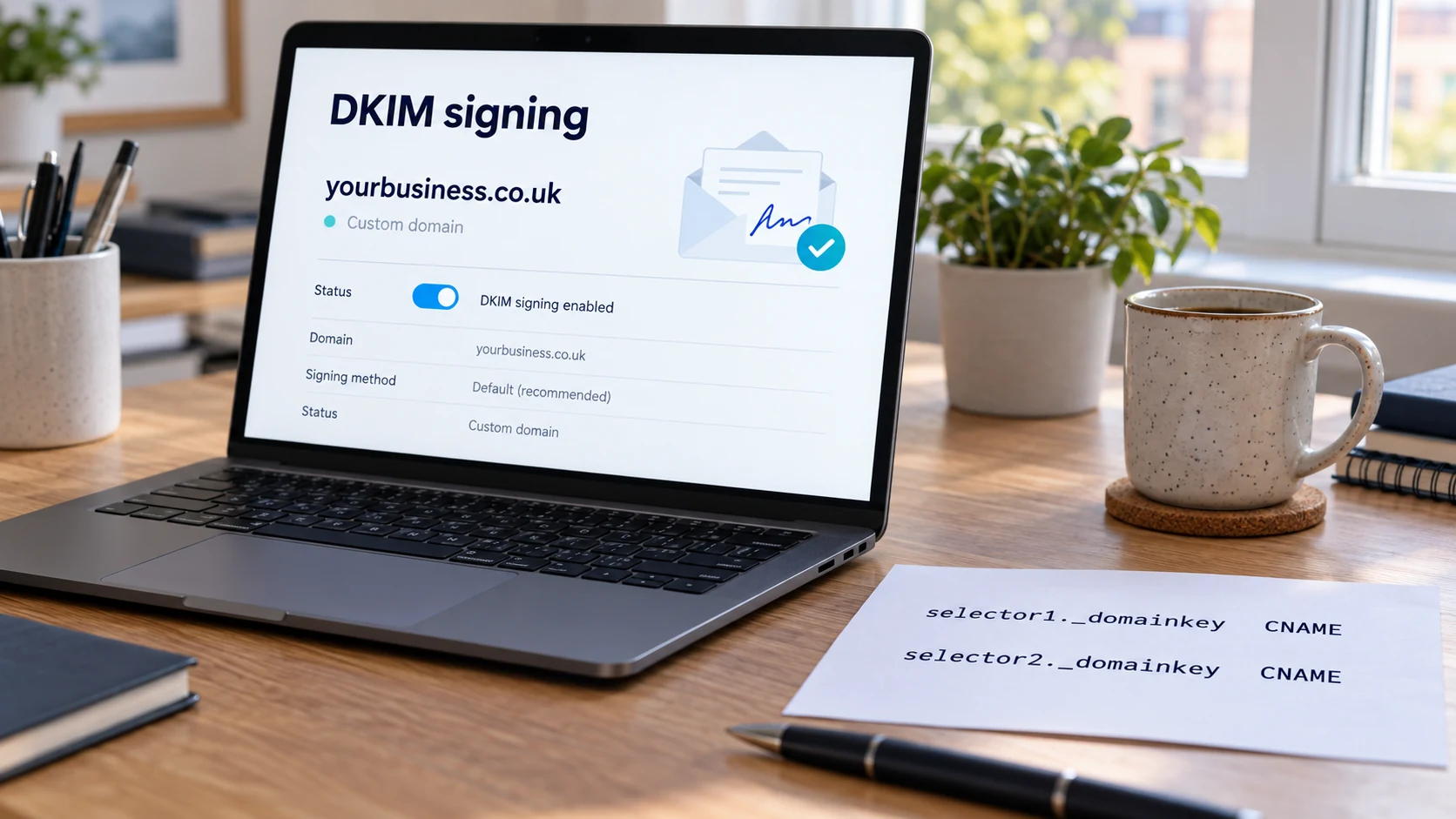
If you're wondering how to set up DKIM in Microsoft 365, there's something you should know first: your emails are almost certainly being DKIM-signed already. Right now. Today.
So why bother?
Because unless someone has switched on DKIM for your domain, Microsoft is signing your emails with its own domain, something ending in onmicrosoft.com. That signature passes DKIM checks perfectly. And it does absolutely nothing for DMARC, because onmicrosoft.com isn't the domain your customers see in the From line.
It's one of the most common hidden gaps in small business email. Everything looks fine. Then you tighten DMARC, or a big provider gets stricter, and staff email starts landing in junk.
This guide shows you how to check what Microsoft is doing now, the two DNS records that fix it, how to switch signing on and how to prove it's working on a real email.
The Hidden Default: Microsoft Is Signing as Itself, Not as You
Every Microsoft 365 tenant has an "initial" domain that looks like yourcompany.onmicrosoft.com. It's created when the account is set up, and it never goes away.
When you add your own domain (yourbusiness.co.uk) and start sending from it, Microsoft still DKIM-signs outgoing mail. But unless you've configured DKIM for yourbusiness.co.uk, it signs using the onmicrosoft.com domain.
Here's what that looks like in a real header:
From: Sarah Jones <sarah@yourbusiness.co.uk>
DKIM-Signature: v=1; a=rsa-sha256; d=yourcompany.onmicrosoft.com;
    s=selector1-yourcompany-onmicrosoft-com; ...
Authentication-Results: ...
    dkim=pass header.d=yourcompany.onmicrosoft.com;
    dmarc=pass header.from=yourbusiness.co.uk
Wait, DMARC passes there? It might, if SPF passes and aligns for yourbusiness.co.uk. Your SPF record probably includes Microsoft, so direct mail usually gets an aligned SPF pass.
So what's the problem?
Why "It Works Fine" Isn't Good Enough
With only SPF carrying DMARC, you're relying on a check that breaks whenever an email is forwarded.
Picture a client whose work email auto-forwards to their personal Gmail. Your email arrives at their company server first (SPF passes), then gets forwarded to Gmail from their company's server. Now SPF fails, because their server isn't in your SPF record.
What saves you in that situation? An aligned DKIM signature, because DKIM travels inside the message. But the onmicrosoft.com signature doesn't align with yourbusiness.co.uk. So DMARC fails.
At p=none, nothing much happens. At p=quarantine or p=reject, that forwarded email goes to spam or gets bounced.
For the bigger picture on why alignment matters, see DMARC alignment explained.
Check What Microsoft Is Doing Right Now (Two Minutes)
Before changing anything, find out where you stand.
- Send an ordinary email from a Microsoft 365 mailbox to a personal Gmail account
- In Gmail, open it, click the three dots and choose "Show original"
- Find the DKIM-Signature header and look at the d= value
- Find Authentication-Results and note what dkim= and dmarc= say
If d= says yourbusiness.co.uk, DKIM is already configured. You can skip to the verification section.
If d= ends in onmicrosoft.com, keep reading. That's the gap.
Google explains "Show original" in its guide to tracing an email's full header.
What You'll Need Before You Start
- Admin access to Microsoft 365 (specifically to the security or Defender portal where email authentication settings live)
- Access to wherever your domain's DNS is hosted (your registrar, web host or a DNS service)
- About fifteen minutes, plus a little waiting for DNS
Not sure where your DNS lives? That's surprisingly common. See how to find who hosts your DNS first.
Step 1: Find the DKIM Settings for Your Domain
Microsoft keeps DKIM settings in its security portal (Microsoft Defender), under email authentication settings. Menu names have changed over the years, so follow Microsoft's current instructions in its DKIM configuration guide if the screens look different.
You'll see a list of your domains. Select the custom domain you send from, like yourbusiness.co.uk.
You'll probably see that signing for that domain is disabled, or that it's waiting for DNS records.
Step 2: Copy the Two CNAME Records Microsoft Gives You
Microsoft uses two selectors so it can rotate keys without breaking anything. That's why you get two records, not one.
They'll look something like this (the values on the right are specific to your tenant, so always copy them exactly from your portal):
Type:   CNAME
Name:   selector1._domainkey
Value:  (long value provided by Microsoft for your domain)

Type:   CNAME
Name:   selector2._domainkey
Value:  (long value provided by Microsoft for your domain)
Don't type the values from memory or copy them from a blog post (including this one). They differ between tenants, and Microsoft has changed the format of these values for some domains over time. The portal shows you the correct ones.
Step 3: Publish the Records in Your DNS (Without the Classic Mistake)
Log in to your DNS provider and add two CNAME records.
Here's the classic mistake. Many DNS panels automatically add your domain to the end of whatever you type in the "Name" or "Host" box.
- If you type selector1._domainkey, the panel creates selector1._domainkey.yourbusiness.co.uk. Correct.
- If you type selector1._domainkey.yourbusiness.co.uk, some panels create selector1._domainkey.yourbusiness.co.uk.yourbusiness.co.uk. Wrong, and Microsoft will never find it.
Look at how your existing records are displayed to work out which style your panel uses.
Other things to check:
- Make sure nothing already exists at selector1._domainkey or selector2._domainkey. If something does, find out what it is before replacing it.
- Don't add a trailing dot unless your panel expects one.
- Save both records.
Step 4: Check the Records Are Public
DNS changes can take a little while to be visible. Before switching on signing, confirm the records resolve.
dig +short CNAME selector1._domainkey.yourbusiness.co.uk
dig +short CNAME selector2._domainkey.yourbusiness.co.uk
On Windows:
nslookup -type=CNAME selector1._domainkey.yourbusiness.co.ukOr use Google Admin Toolbox Dig in your browser.
You should see the values Microsoft gave you. If you see nothing, wait a bit and check the record name for the double-domain mistake.
Step 5: Switch On DKIM Signing for Your Domain
Back in the Microsoft portal, with your domain selected, turn on signing (the option is usually labelled something like "Sign messages for this domain with DKIM signatures").
If Microsoft says it can't find the CNAME records, don't panic. It usually means DNS hasn't caught up yet, or the names have a typo. Recheck with dig, wait, then try again.
Once enabled, new emails from that domain should be signed with d=yourbusiness.co.uk.
Step 6: Prove It on a Real Email (Not Just a Green Toggle)
The portal saying "enabled" is Microsoft's view. What matters is what recipients see.
Send a fresh email from a Microsoft 365 mailbox to a personal Gmail account. Open "Show original" and check:
DKIM-Signature: ... d=yourbusiness.co.uk; s=selector1; ...
Authentication-Results: ...
    dkim=pass header.d=yourbusiness.co.uk;
    dmarc=pass header.from=yourbusiness.co.uk
You're looking for three things:
- d= is now your domain
- dkim=pass for your domain
- dmarc=pass
If d= still shows onmicrosoft.com, the email may have been sent before signing kicked in, or a different domain is being used in the From address. Send another and check again.
For help reading headers, see how to read email headers.
Got More Than One Domain? Each One Needs Its Own DKIM
Microsoft DKIM is set up per domain. If your tenant has several domains (a .co.uk and a .com, an old brand name, a trading name), each one you send from needs its own pair of CNAME records and its own "enable" switch.
A quick way to check: in the DKIM settings list, look at the status of every domain. Any domain you send from that isn't enabled is still signing with onmicrosoft.com.
And for domains you don't send from at all? Protect them with restrictive records instead. See how to protect a parked domain.
What This Doesn't Fix (Your Other Sending Tools)
Here's a point that catches a lot of people out.
Microsoft 365 DKIM only covers email sent through Microsoft 365. It does nothing for:
- Your invoicing software
- Your newsletter platform
- Your website contact form
- Your booking system
- Your help desk
Each of those sends through its own servers and needs its own DKIM set up in its own settings. That's why a sender inventory matters so much. The sender inventory template helps you list them all.
Five Things That Commonly Go Wrong
- The double-domain record name. selector1._domainkey.yourbusiness.co.uk.yourbusiness.co.uk. Always check the final name.
- TXT instead of CNAME. Microsoft wants CNAMEs for this. Creating TXT records with a copied key won't work.
- Only one record published. Microsoft needs both selectors.
- Enabling the wrong domain. Turning on DKIM for the onmicrosoft.com domain (already on) instead of your custom domain.
- Testing too soon. Checking an email sent before signing was enabled, and concluding it didn't work.
Do You Need to Rotate the Keys?
Microsoft manages the private keys and uses the two selectors to rotate between them. That's the beauty of the CNAME approach: the CNAMEs point at Microsoft-managed records, so key changes don't require you to edit your DNS each time.
Microsoft's portal also offers an option to rotate keys manually. Most small businesses never need to touch it. If you do, follow Microsoft's current guidance, and leave both CNAME records in place.
Once DKIM Aligns, You're Ready for the Next Step
With Microsoft 365 signing as your domain, your staff email now has two routes to a DMARC pass: aligned SPF and aligned DKIM. Forwarding stops being a threat for this route.
That's a big step towards moving your DMARC policy from monitoring (p=none) to real protection (p=quarantine or p=reject). Before you do, make sure every other sender aligns too. The guide to moving from p=none to p=reject walks through it.
A Worked Example: The Forwarded Email That Failed
Here's how this plays out for a fictional Sheffield law firm, Barton & Reid, using Microsoft 365 with DMARC set to p=quarantine.
A partner emails a client. The client's work account automatically forwards to their personal Gmail. At Gmail, the header shows:
spf=fail (forwarding server not authorised for bartonreid.co.uk)
dkim=pass header.d=bartonreid.onmicrosoft.com
dmarc=fail header.from=bartonreid.co.uk
DKIM passed, but for onmicrosoft.com. SPF failed because of the forward. Nothing aligned. Gmail applies the quarantine policy and the email lands in spam.
The client never sees the advice they were waiting for.
After the firm enables DKIM for bartonreid.co.uk in Microsoft 365, the same forwarded email shows:
spf=fail (forwarding server not authorised)
dkim=pass header.d=bartonreid.co.uk
dmarc=pass header.from=bartonreid.co.uk
SPF still fails (forwarding always breaks it), but aligned DKIM carries DMARC. The email reaches the inbox.
Two DNS records and one switch. That's the whole difference.
What Your DMARC Reports Will Show Before and After
If you're receiving DMARC aggregate reports, you can watch this change happen.
Before enabling DKIM for your domain, rows for Microsoft's sending IPs typically show:
- SPF: pass and aligned (for direct mail)
- DKIM: pass, but for onmicrosoft.com, so not aligned
- Forwarded copies: SPF fails, DKIM not aligned, DMARC fails
After enabling DKIM:
- DKIM: pass and aligned for your domain
- Forwarded copies: SPF still fails, but DKIM aligns, so DMARC passes
That shift in your reports is your confirmation that the fix is working across real traffic, not just your test email. The guide on how to read DMARC reports explains the fields.
Using an IT Provider? Here's Exactly What to Ask Them
If someone else manages your Microsoft 365, you don't need to do this yourself. But you do need to ask the right question, because "is DKIM set up?" often gets a quick "yes" (technically true, thanks to the onmicrosoft.com default).
Ask instead:
- "Is DKIM signing enabled for our custom domain, not just the onmicrosoft.com domain?"
- "Can you send me a header from a recent email showing d= set to our domain?"
- "Are all the domains we send from enabled, including any secondary or trading-name domains?"
- "Who controls our DNS, and have the selector1 and selector2 CNAME records been published?"
A header showing your own domain in the d= value is proof. Anything else is reassurance.
Quick Checklist: Microsoft 365 DKIM
[ ] Checked a real email header: what is the d= value today?
[ ] Admin access to the Microsoft security / Defender portal
[ ] Access to the DNS host for each domain
[ ] selector1._domainkey CNAME published (exact value from portal)
[ ] selector2._domainkey CNAME published (exact value from portal)
[ ] Both records visible in a public DNS lookup
[ ] DKIM signing enabled for the custom domain in the portal
[ ] Fresh test email shows d=yourdomain, dkim=pass, dmarc=pass
[ ] Repeated for every domain we send from
[ ] Other sending tools checked separately
Frequently Asked Questions
Is DKIM enabled by default in Microsoft 365?
Microsoft signs outgoing mail by default, but using your onmicrosoft.com domain. DKIM for your own custom domain has to be configured and enabled.
Why does Microsoft 365 need two DKIM records?
Two selectors (selector1 and selector2) let Microsoft rotate signing keys without breaking signatures on emails in transit.
How long does it take for Microsoft 365 DKIM to work?
Once the CNAME records are publicly visible and you've enabled signing, new emails should be signed with your domain. DNS visibility can take a little time, so allow for that.
Will enabling DKIM in Microsoft 365 affect my email delivery?
It shouldn't cause problems if the records are correct. It improves your position, because receivers can now see an aligned DKIM signature for your domain.
Do I also need SPF for Microsoft 365?
Yes. SPF and DKIM do different jobs. Your SPF record should include Microsoft's servers. See the SPF record guide for Microsoft 365 and Google Workspace.
Can I set up DKIM in Microsoft 365 if my DNS is with my web host?
Yes. Microsoft just needs the two CNAME records published wherever your DNS is hosted. Add them at your web host's DNS panel (or ask your web host to add them), then enable signing in Microsoft.
Does enabling DKIM change anything for people receiving my email?
They won't notice anything visible. Behind the scenes, their mail server can now verify a signature from your own domain, which makes your email easier to trust.
Sources and further reading
- Microsoft Learn: Set up DKIM to sign mail from your Microsoft 365 domain
- Microsoft Learn: How email authentication works in Microsoft 365
- RFC 6376: DomainKeys Identified Mail
- RFC 9989: DMARC
Related reading
- Why DKIM can pass while DMARC fails
- Set up DKIM in Google Workspace
- Find out who hosts your DNS