
Looking for the right SPF record for Microsoft 365 and Google Workspace? Good news: the basic record is short. One line. You could copy it in thirty seconds.
The bad news is that copying it in thirty seconds is how most SPF problems start.
Because your business probably doesn't only send through Microsoft or Google. There's the invoicing tool, the newsletter, the website form. And the moment someone adds those the wrong way (usually by creating a second SPF record), SPF breaks for everything, including your normal staff email.
This guide gives you the correct base records for both platforms, shows you how to add other senders without breaking anything, and explains the one question you must ask before adding any service to your SPF record. Most people skip it, and it's the one that saves the most trouble.
The Basic SPF Record for Microsoft 365
If Microsoft 365 is your only sender, your SPF record is:
Type:  TXT
Name:  @  (your root domain, e.g. yourbusiness.co.uk)
Value: v=spf1 include:spf.protection.outlook.com -all
What each part means:
- v=spf1: "This is an SPF record."
- include:spf.protection.outlook.com: "Microsoft 365's servers are allowed to send for me." This points at a record Microsoft maintains, so when Microsoft's servers change, you don't have to update anything.
- -all: "Everything else should fail."
Microsoft explains its recommended setup in its SPF configuration guide.
The Basic SPF Record for Google Workspace
If Google Workspace is your only sender:
Type:  TXT
Name:  @  (your root domain)
Value: v=spf1 include:_spf.google.com ~all- include:_spf.google.com: "Google's mail servers are allowed to send for me."
- ~all: "Everything else should softfail."
Google's guide to setting up SPF covers the details.
Why does one end in -all and the other in ~all?
Both are valid. -all asks receivers to fail unlisted senders; ~all asks them to treat unlisted senders as a softfail. Providers' examples differ. Many businesses use ~all while they're still discovering every sender, then move to -all once their list is complete. Choose deliberately rather than copying whichever example you saw first.
The Question to Ask Before Adding Anything Else
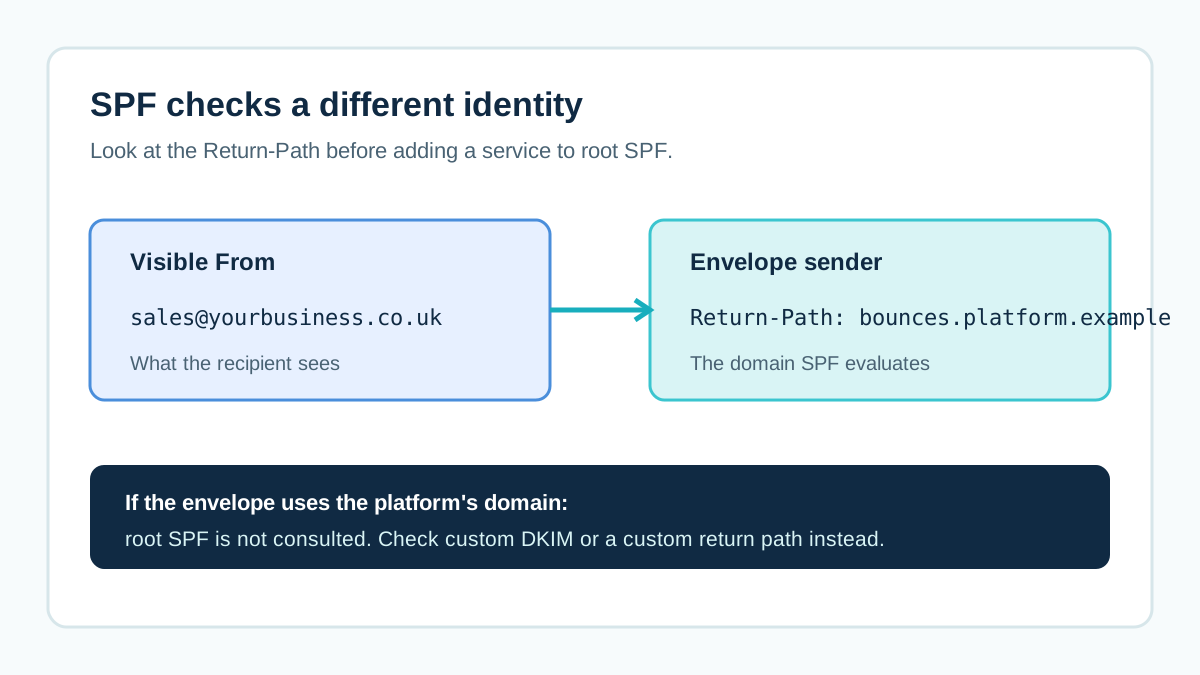
Here's the aha moment most SPF guides miss.
Before you add a newsletter platform or invoicing tool to your SPF record, ask: "Does this service use my domain as its envelope sender?"
SPF doesn't check the From address your customers see. It checks the hidden envelope sender (the Return-Path). RFC 7208 defines this.
Many services send your emails with their own envelope domain, like bounces.platform.example. In that case:
- Adding their include to your SPF record does nothing for those emails
- But it does use up one of your limited DNS lookups
- And it authorises them to send as your domain in situations you might not want
So check first. Send a test email from the service, open the original and look at the Return-Path. If it's the service's domain, don't add them to your root SPF record. Set up their custom DKIM (and their custom return path, if offered) instead.
Adding Other Senders: Merge Into One Record, Never Two
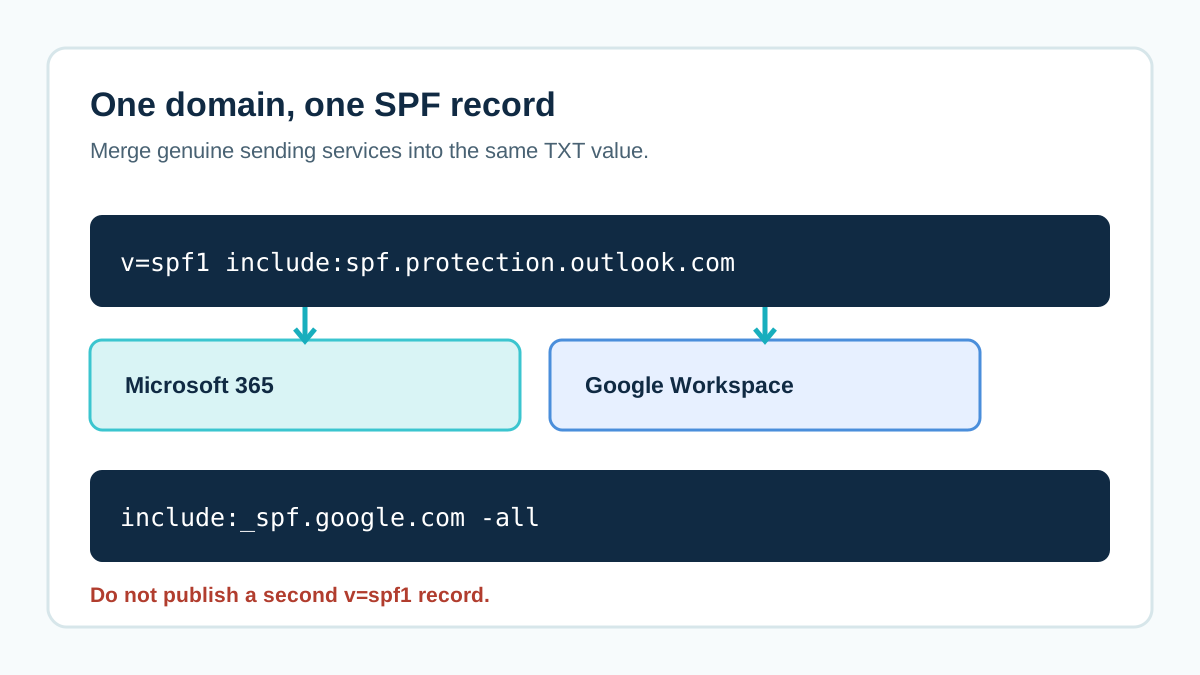
If another service genuinely needs to be in your SPF record, add it to the same record.
Wrong (two records):
v=spf1 include:spf.protection.outlook.com -all
v=spf1 include:servers.newsletter.example ~all
RFC 7208 says a domain must have exactly one SPF record. Two records cause a permanent error, and SPF fails for everything, including your Microsoft 365 email.
Right (one merged record):
v=spf1 include:spf.protection.outlook.com include:servers.newsletter.example -allThe pattern is always:
- v=spf1 at the start
- every include (or ip4/ip6) in the middle
- one "all" at the very end
The "all" must be last, because anything after it is never read.
Using Both Microsoft 365 and Google Workspace?
Some businesses run both (often during a migration, or when different teams use different platforms). If both genuinely send from the same domain:
v=spf1 include:spf.protection.outlook.com include:_spf.google.com -allBut if you've finished moving from one to the other, remove the old one. Leaving a former provider authorised means anyone with an account on that platform's infrastructure path has one less obstacle to sending as you, and it wastes lookups.
The guide to switching email providers without losing email covers when to remove the old include.
The Ten-Lookup Limit (and Why Microsoft or Google Count for More Than One)
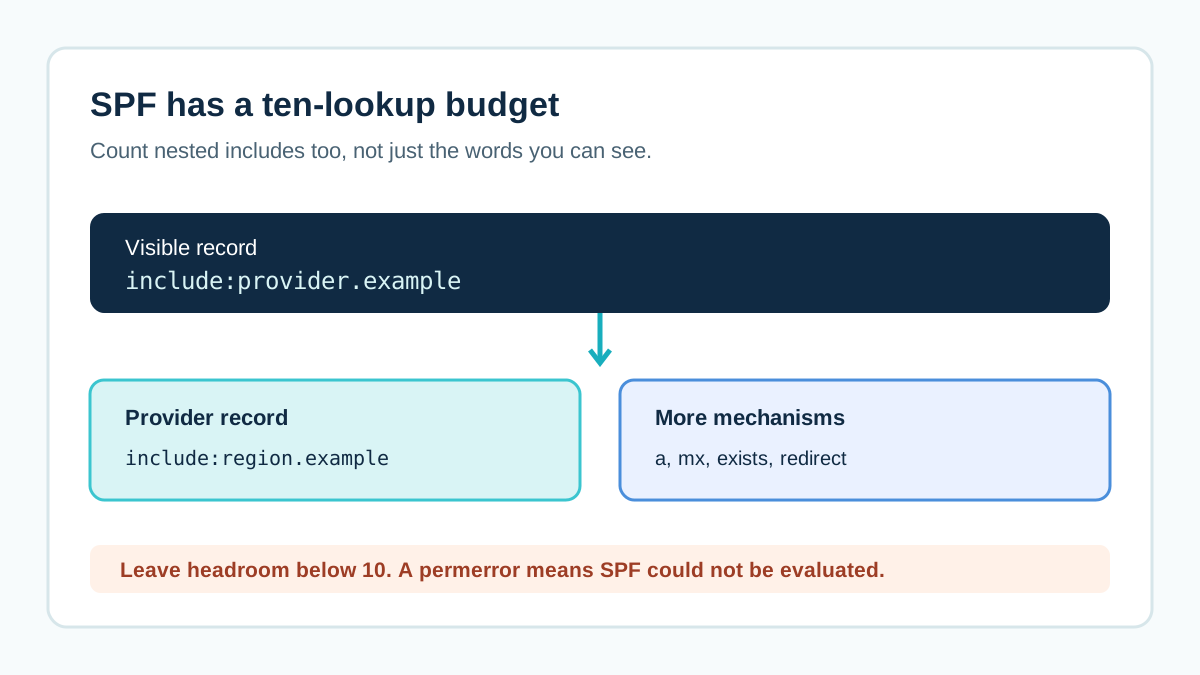
SPF has a hard limit: no more than ten DNS lookups when a receiver checks your record. Every include, a, mx, exists and redirect counts. RFC 7208 defines this.
Here's the sneaky part: includes can contain more includes. A single include for a big provider might use more than one lookup once it's fully expanded. And providers can change their own records at any time.
So a record that looks like it has four includes might actually use eight or nine lookups. Add two more services, and you're over the limit, with SPF returning a permanent error.
What to do:
- Only include services that genuinely need it (see the question above)
- Remove services you no longer use
- Check your full lookup count with a tool that expands includes
- Leave headroom below ten
If you're already over, see how to fix an SPF record.
Should You Add "a" and "mx" to Your Record?
You'll often see records like v=spf1 a mx include:... -all.
- a authorises whatever IP your domain's A record points to (usually your website server)
- mx authorises your incoming mail servers
For a business using Microsoft 365 or Google Workspace, neither is usually needed:
- Your website server probably doesn't send your email (and if it does, see the website email guide)
- Your MX servers receive mail; Microsoft's or Google's include already covers sending
Each one costs a lookup and authorises servers that may not need to send as you. Remove them unless you've confirmed they're needed.
Step by Step: Updating Your SPF Record Safely
- Look up your current record. Use dig +short TXT yourbusiness.co.uk or Google Admin Toolbox Dig. Note every TXT record starting v=spf1.
- Save a copy. Write down the exact current value and TTL before changing anything.
- List every sender. For each include, note which service it's for and whether you still use it.
- Build one new record. Keep needed includes, remove dead ones, add any genuinely needed new ones, one "all" at the end.
- Replace, don't add. Edit the existing SPF record rather than creating a second one.
- Check it's public. Look it up again and confirm exactly one v=spf1 record.
- Test each route. Send a test from Microsoft/Google and from each other included service. Check SPF passes in the headers.
Five SPF Mistakes We See on Microsoft 365 and Google Workspace Domains
- Two SPF records. The most common, and the most damaging.
- The old provider still included. Years after migrating.
- Typos in the include. include:spf.protection.outlook.co instead of .com. SPF fails quietly.
- Every tool ever used added "just in case". Lookups blow past ten.
- SPF set up on the wrong domain. A newsletter platform uses news.yourbusiness.co.uk as its envelope domain, but someone edits the root record instead.
SPF Alone Isn't Enough: Pair It With DKIM
SPF is only one of three checks. It breaks when emails are forwarded, because the forwarding server isn't in your record.
To keep your emails passing DMARC in more situations, set up DKIM in your mailbox platform too:
Then publish DMARC so receivers know how to treat emails that fail. The DMARC setup guide walks through it.
How to Read an Existing SPF Record, Piece by Piece
If you've inherited an SPF record, it might look like this:
v=spf1 a mx include:spf.protection.outlook.com include:_spf.google.com
  include:servers.oldnewsletter.example ip4:203.0.113.10 ~all
Read it left to right and ask a question about each part:
- v=spf1: fine, every SPF record starts this way
- a: does your website server send email? Probably not. Candidate for removal.
- mx: do your incoming mail servers send? With Microsoft or Google, usually covered already. Candidate for removal.
- include:spf.protection.outlook.com: do you still use Microsoft 365?
- include:_spf.google.com: do you still use Google Workspace? Using both is rare unless mid-migration.
- include:servers.oldnewsletter.example: is that newsletter platform still in use, and does it use your domain as its envelope sender?
- ip4:203.0.113.10: what is this? A scanner? An old server? Find out before deleting.
- ~all: softfail for everything else
Every part should have a named owner and a reason. Anything without one goes on your "investigate" list, not straight in the bin.
Four Common Setups and Their Records
These use fictional domains. Always check your own senders before copying.
Microsoft 365 only
v=spf1 include:spf.protection.outlook.com -allGoogle Workspace only
v=spf1 include:_spf.google.com ~allMicrosoft 365 plus an office scanner that sends from a fixed IP
v=spf1 include:spf.protection.outlook.com ip4:203.0.113.25 -allOnly add the IP if the scanner genuinely sends directly from that address using your domain as the envelope sender. Many scanners send through Microsoft 365 instead, in which case no extra entry is needed.
Google Workspace plus a service that uses your domain as the envelope sender
v=spf1 include:_spf.google.com include:mail.service.example ~allOnly if you've confirmed the service's emails show your domain in the Return-Path.
What SPF Looks Like in a Real Email Header
When you test, the receiver's Authentication-Results line shows the outcome:
spf=pass (sender IP is authorised) smtp.mailfrom=yourbusiness.co.ukNote the smtp.mailfrom value. That's the domain SPF actually checked. If it shows a different domain (like a platform's bounce domain), your root SPF record wasn't even consulted for that email.
If you see spf=permerror, something structural is wrong: usually two records or too many lookups. If you see spf=fail, the sending server isn't authorised for the domain checked.
When SPF Should Live on a Subdomain, Not Your Root
Some platforms offer a "custom return path" on a subdomain like bounce.yourbusiness.co.uk. When you set that up, SPF for those emails is checked against the subdomain, not your root.
That's usually a good thing:
- Your root record stays short
- The platform manages SPF for its own subdomain (often via a CNAME)
- Relaxed DMARC alignment still works, because the subdomain belongs to your domain
So before adding a platform's include to your root record, check whether it offers a custom return path instead. It's often the cleaner choice.
What Happens When SPF Fails
When a receiving server checks SPF and the sending server isn't authorised, the result is "fail" (with -all) or "softfail" (with ~all). Neither automatically means the email bounces. What happens next depends on:
- Whether DKIM passes and aligns (which can still give a DMARC pass)
- Your DMARC policy (none, quarantine or reject)
- The receiver's own filtering decisions
So an SPF failure on its own might be harmless if aligned DKIM carries the email. But an SPF permerror (two records, or too many lookups) is worse, because it means SPF can't be evaluated at all, for any of your email.
That's why the merged-record rule matters so much.
A Five-Point SPF Health Check for Microsoft 365 and Google Workspace Domains
[ ] Exactly one TXT record starting v=spf1 at the root domain
[ ] Includes only for services that use our domain as envelope sender
[ ] No include for a provider we've stopped using
[ ] Total lookups comfortably under ten when fully expanded
[ ] A real email from each included service shows spf=pass
Run it whenever you add or remove a sending service, and once a quarter otherwise.
A Worked Example: The Florist With Two SPF Records
A fictional Chester florist uses Microsoft 365 for email. Their SPF record was fine for years. Then they signed up to an online ordering platform, which said "add this SPF record to your DNS". The owner added a brand new TXT record.
Overnight, two SPF records existed. Every receiving server that checked SPF got a permanent error, for every email, including ordinary staff replies.
Customers started finding emails in junk. The ordering platform's confirmations were bouncing at some companies.
When they checked a header, they saw spf=permerror. Looking up their DNS revealed the two records. They checked a test order confirmation and found the ordering platform used its own envelope domain anyway, so its include wasn't even needed in their root record. They deleted the second record, kept the original Microsoft 365 one and set up custom DKIM in the ordering platform instead.
SPF passed again the same day.
Frequently Asked Questions
What is the SPF record for Office 365?
v=spf1 include:spf.protection.outlook.com -all, if Microsoft 365 is your only sender. Add other genuinely needed senders into the same record.
What is the SPF record for Google Workspace?
v=spf1 include:_spf.google.com ~all, if Google is your only sender.
Can I have two SPF records if I use two providers?
No. Merge both includes into one record. Two records cause a permanent error.
Should I add my newsletter platform to SPF?
Only if it uses your domain as the envelope sender. Many don't. Check a real email's Return-Path first, and set up the platform's custom DKIM either way.
Is -all or ~all better?
Both are valid. -all is stricter. Use whichever matches how confident you are that every legitimate sender is listed.
Does my SPF record need my website's IP address?
Only if your website server actually sends email using your domain as the envelope sender. Most websites should send through an authenticated email service instead, which handles this differently.
Where do I add my SPF record?
At your DNS host, as a TXT record on your root domain (often shown as @). If you're not sure where that is, look up your nameservers first.
How do I check my SPF record?
Look it up with a DNS tool such as dig or Google Admin Toolbox Dig, choosing TXT for your domain. Then send a test email and check the spf= result and smtp.mailfrom domain in the header.
Can SPF alone stop people spoofing my domain?
No. SPF doesn't check the visible From address. You need DMARC (with SPF or DKIM aligned) to protect the address people actually see.
Sources and further reading
- Microsoft Learn: Set up SPF for your Microsoft 365 domain
- Google Workspace Admin Help: Set up SPF
- RFC 7208: Sender Policy Framework