You've been told to "add a record to your DNS". Simple enough. You log in to the company you bought your domain from, add the record, save it and wait.
Nothing happens. A day later, nothing has still happened.
This is one of the most common hidden time-wasters in small business email, and it usually has nothing to do with the record itself. It's about where you put it. If you don't know how to find who hosts your DNS, you can make perfect changes in completely the wrong place.
Here's the surprise: the company you bought your domain from often isn't the company that answers DNS questions for it. Edit DNS there, and the rest of the internet never sees it.
This guide shows you how to find out, in about two minutes, which company actually controls your DNS, and how to make sure your changes land where they count.
Four Different Jobs That Get Confused
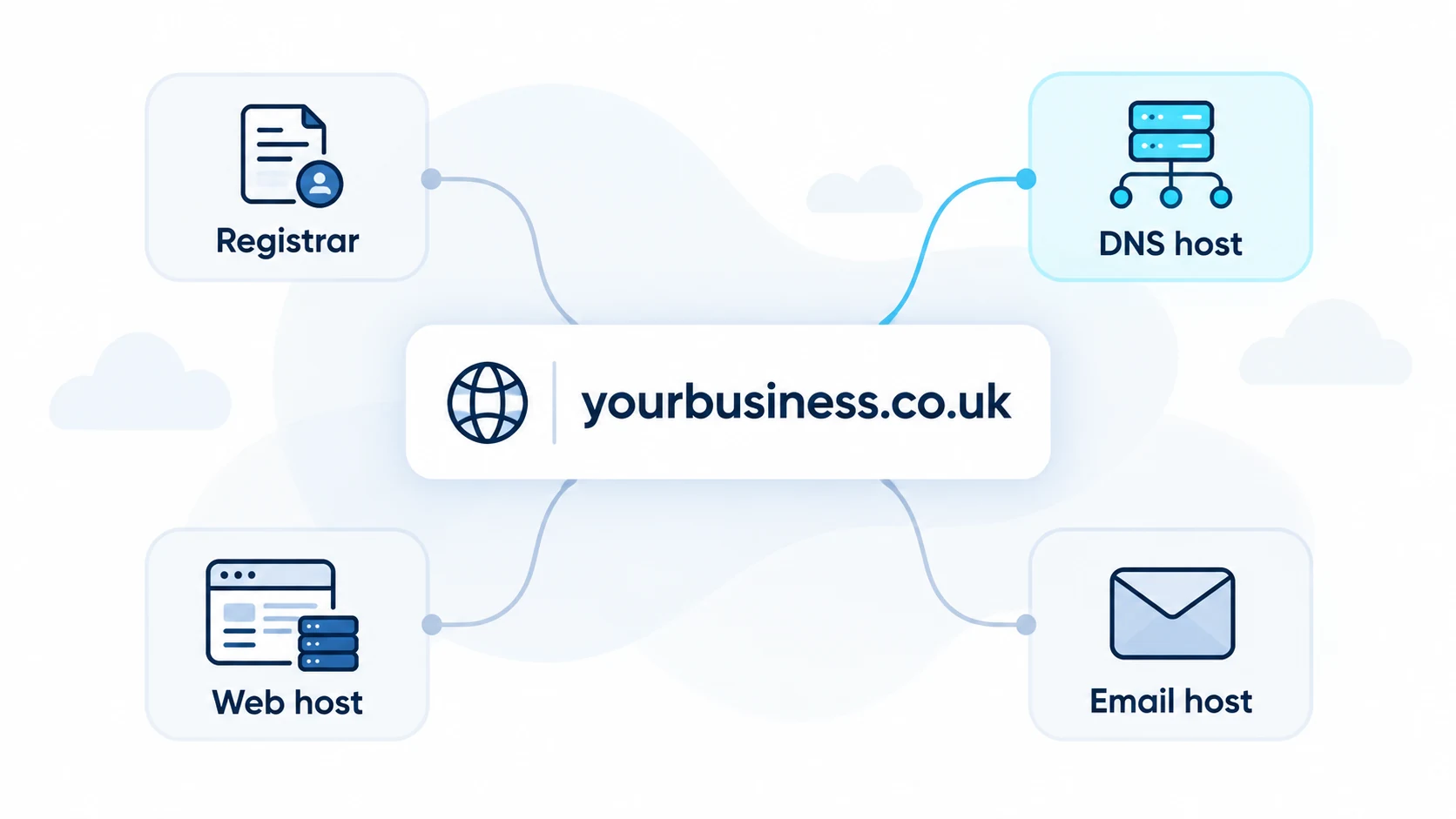
When people say "my domain is with X", they might mean any of four different things. Each can be a different company:
- Registrar: the company you pay to register the domain name and renew it each year
- DNS host: the company whose servers answer questions like "where does email for this domain go?" and "what's the SPF record?"
- Web host: the company whose servers run your website
- Email host: the company that runs your mailboxes (Microsoft 365, Google Workspace and so on)
Sometimes one company does all four. Often it's two or three different ones. Your registrar might be one company, your DNS might be handled by your web designer's hosting company, and your email might be Microsoft 365.
The Two-Minute Test: Look Up Your Nameservers
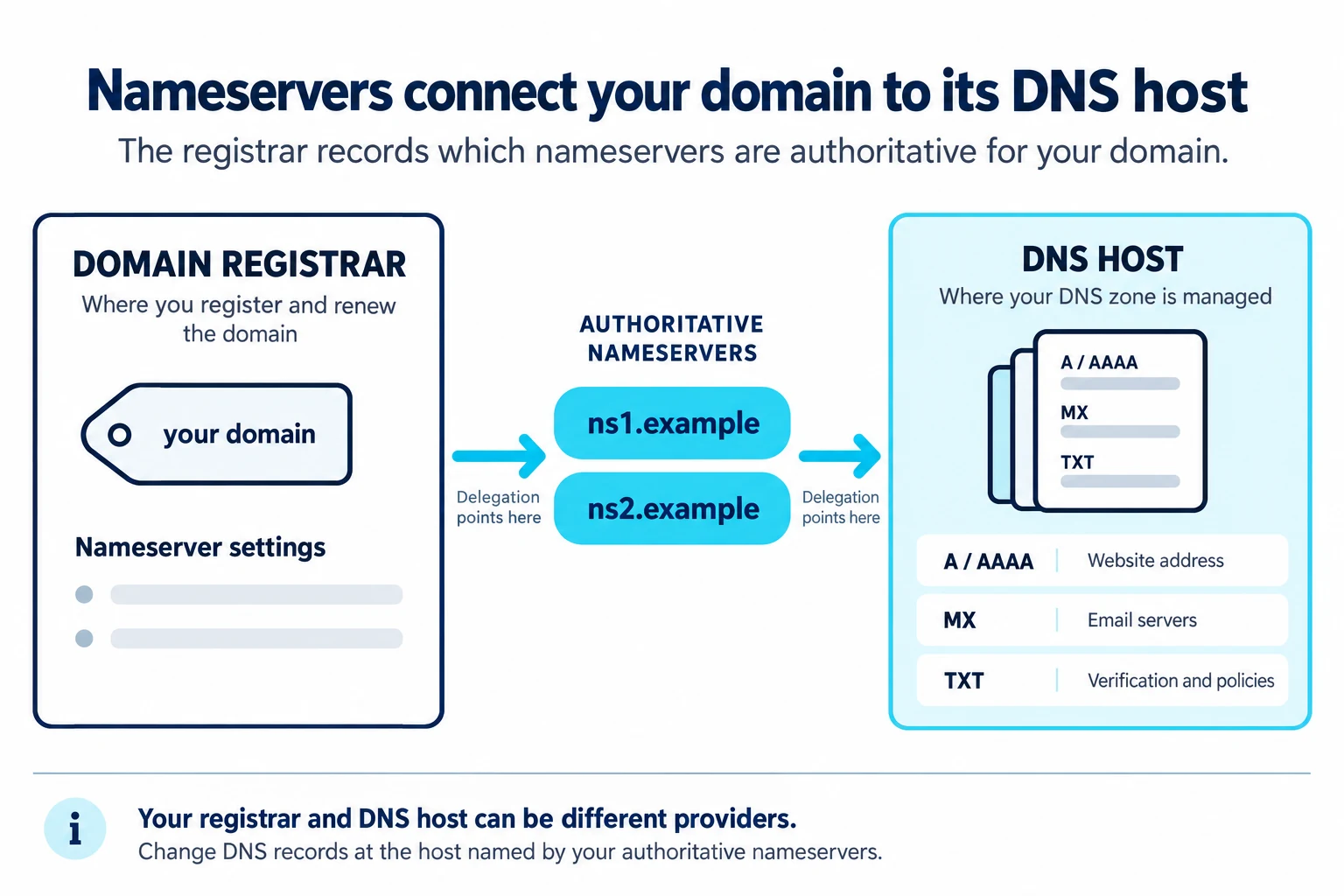
Your domain's nameservers tell the whole internet which company's servers hold your DNS records. Find them, and you've found your DNS host.
Using the command line
On a Mac or Linux:
dig +short NS yourbusiness.co.ukOn Windows:
nslookup -type=NS yourbusiness.co.ukUsing your browser
Use Google Admin Toolbox Dig. Choose "NS" and enter your domain.
You'll get back two or more names, like:
ns1.somehostingcompany.example
ns2.somehostingcompany.example
The company name in those nameservers usually tells you who your DNS host is. If they mention your web host's name, your DNS is with your web host. If they mention a DNS service, that's where you need to log in.
What If the Nameservers Don't Make Sense?
Sometimes the nameserver names are generic and don't obviously point to a company you recognise. A few ways to work it out:
- Search the nameserver domain. The part after "ns1." usually belongs to a hosting or DNS company with a website.
- Ask your web designer or IT provider. They may have set up DNS when they built your site.
- Check old emails. Search your inbox for the nameserver domain or for words like "DNS", "hosting" or "nameservers". Setup confirmation emails often turn up.
- Check your registrar account. Most registrars show which nameservers your domain uses. If they're the registrar's own nameservers, DNS is with them.
Find Your Registrar Too (You'll Need It One Day)
Even if you don't need to change DNS today, you should know who your registrar is, because they control renewal and the ability to change nameservers.
For many domains, you can look up the registrar using ICANN's lookup service. For .uk domains, the registry is Nominet, which offers its own WHOIS lookup on its website.
Record:
- The registrar's name
- Which account the domain is in
- Who has the login
- When it renews
- Whether auto-renew is on
A lapsed domain takes your email and website down with it, and can be bought by someone else. That's not a risk worth taking over a forgotten card expiry date.
Why People Edit DNS in the Wrong Place (It's Easier Than You'd Think)
It happens constantly, and it's not a silly mistake. Here's why:
- Registrars usually show a DNS editing screen even when your nameservers point elsewhere. It looks like it'll work. It won't.
- Web designers sometimes move DNS to their hosting without telling you, so the place you used to edit stops being the one that counts.
- An old IT provider might have moved DNS to a service you've never logged into.
- Email providers' setup wizards tell you to "add these records to your DNS" without saying where that is.
How to Tell If a Change Has Landed in the Right Place
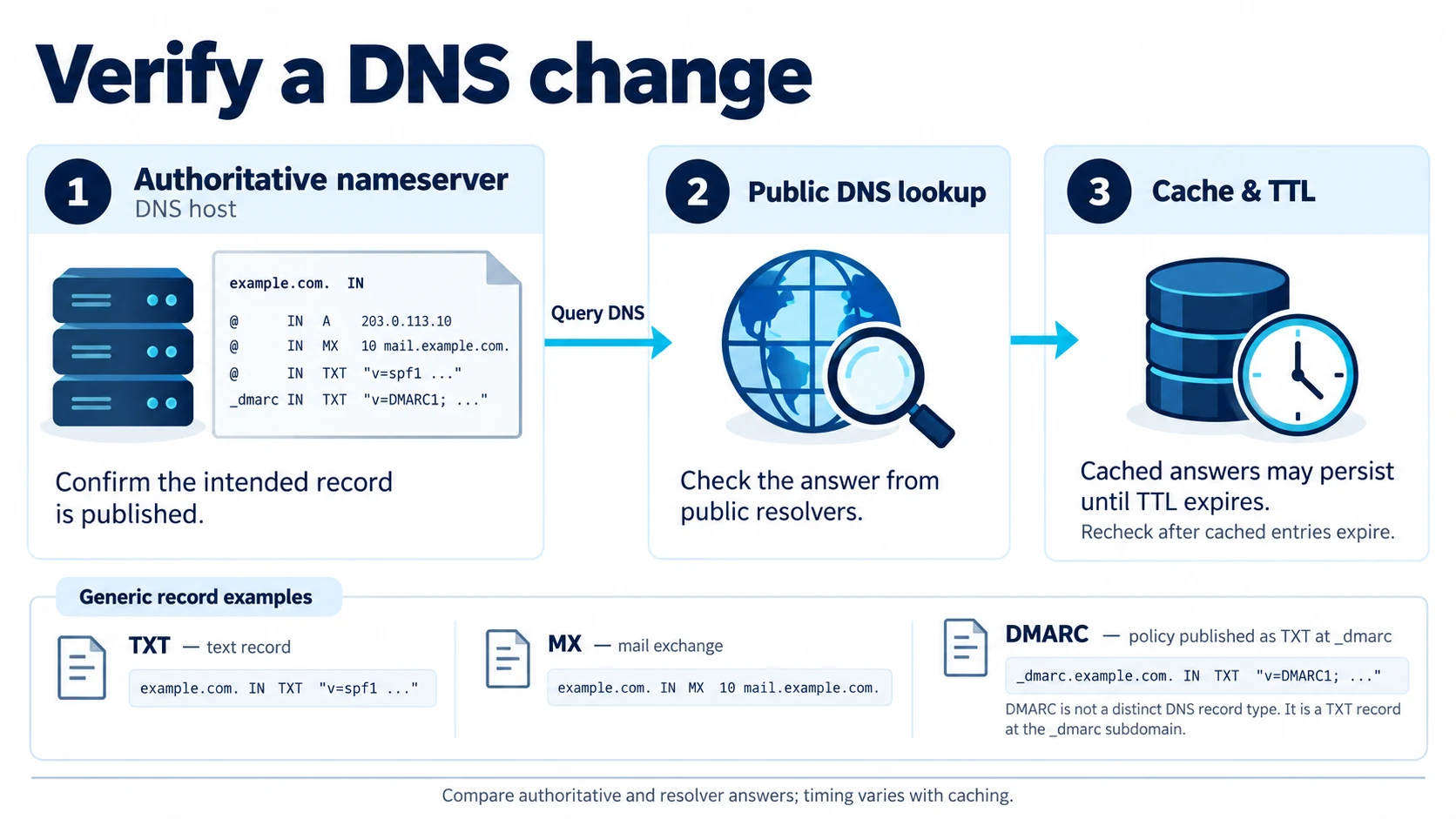
After making a change, check the public answer:
dig +short TXT yourbusiness.co.uk
dig +short TXT _dmarc.yourbusiness.co.uk
dig +short MX yourbusiness.co.uk
If you made the change at the DNS host, the new value should show up (allowing a little time for caching).
You can also ask your DNS host's own nameservers directly, which avoids caches:
dig +short TXT yourbusiness.co.uk @ns1.somehostingcompany.exampleIf the DNS host's own nameserver shows your change but public lookups don't yet, it's caching. Wait for the TTL to expire.
If the DNS host's nameserver doesn't show your change, you edited somewhere else. Find the right account.
Should You Move Your DNS to One Place?
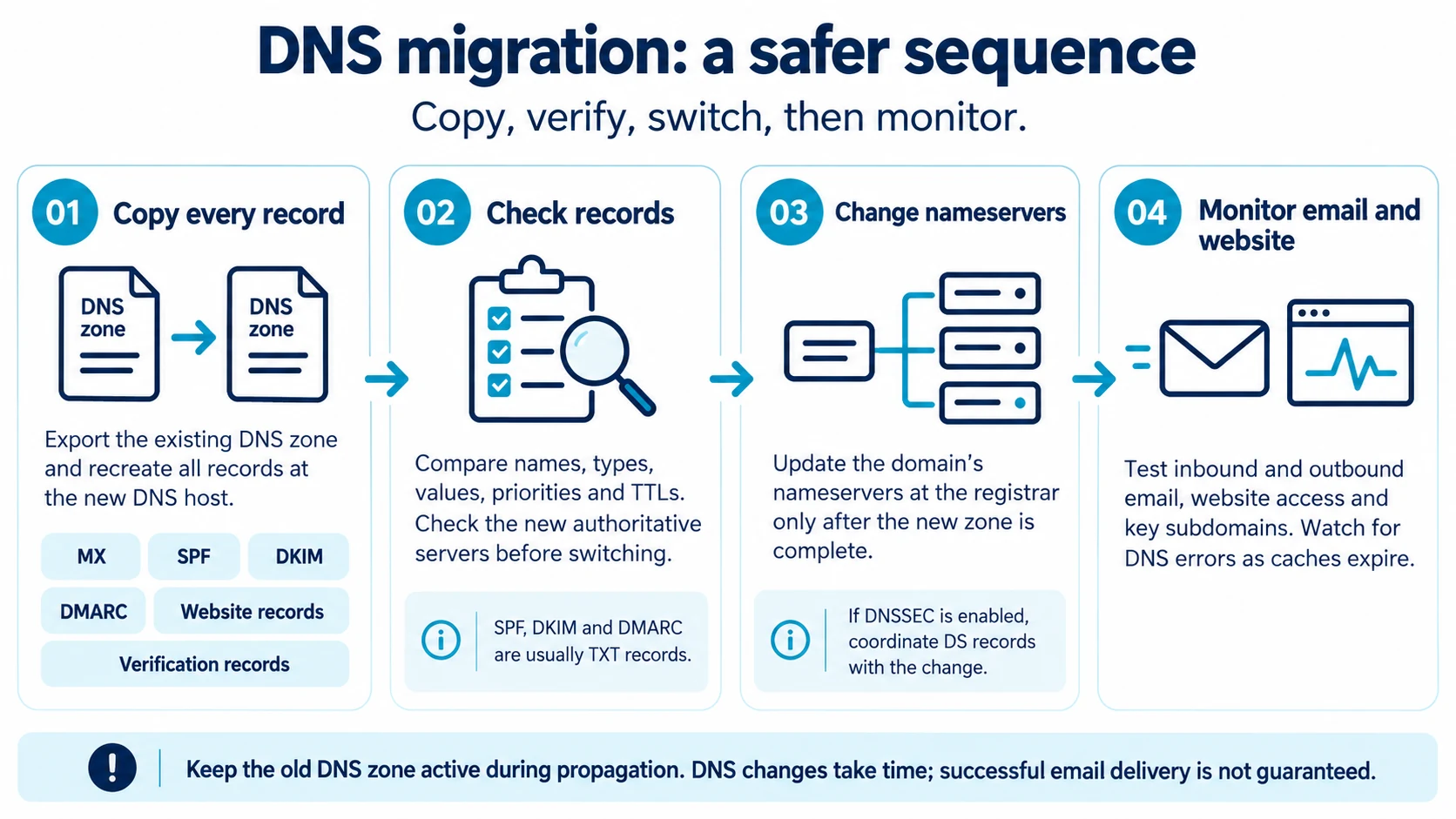
If your DNS is scattered (registrar here, DNS there, nobody quite sure who has the login), it's worth tidying up. But do it carefully.
Moving DNS hosting means:
- Copying every existing record to the new host first (MX, SPF, DKIM selectors, DMARC, website records, verification records)
- Checking them carefully at the new host
- Only then changing the nameservers at the registrar
- Watching for a few days to make sure email and the website still work
Miss one record and something breaks. A forgotten DKIM selector means a sending tool fails authentication. A forgotten MX record means you stop receiving email.
Who Should Have Access?
DNS controls your email, your website and your domain's reputation. Access should be:
- In an account owned by your business, not a former employee's personal login or an agency's account you can't get into
- Protected with two-factor login
- Shared with as few people as needed
- Recorded somewhere safe (who has access, which account, recovery contacts)
If your web agency or IT provider holds the only login, ask them to add an account for someone in your business. If the relationship ever ends badly, you don't want your domain held hostage.
Write It All Down: A Simple Domain Record
Keep a short note for each domain you own:
Domain:              yourbusiness.co.uk
Registrar:           (company)    Account owner: (name)    Renews: (date)
DNS host:            (company)    Nameservers: ns1..., ns2...
DNS login held by:   (names)      Two-factor: yes/no
Web host:            (company)
Email host:          (Microsoft 365 / Google Workspace / other)
Last checked:        (date)
Keep it with your sender inventory. The next time someone asks you to add a DKIM record, you'll know exactly where to go.
What to Do Next
Now you know where your DNS lives, you can make the changes that actually improve your email:
A Real-World Scenario: The Agency That Moved Your DNS
Here's a story that plays out in small businesses all the time.
A Derby kitchen fitter bought their domain through a well-known registrar years ago. When they had a new website built, the agency changed the nameservers to point at its own hosting, so it could manage the website records easily. Nobody mentioned it, and nobody wrote it down.
Two years later, the business switches to Microsoft 365. The setup wizard says "add these records to your DNS". The owner logs into the registrar (where they've always "managed the domain"), adds the records and waits.
Microsoft never verifies the domain. Email keeps going to the old provider.
A thirty-second nameserver lookup would have shown that DNS lived with the agency's hosting company, not the registrar. Once the records were added there, everything worked within the hour.
The fix took minutes. Finding out where to make it took days.
The Main DNS Record Types, in Plain English
When you log in to your DNS host, you'll see a list of records. Here's what the common ones do for email:
- MX: tells the world which servers receive your email. Change these and incoming mail goes somewhere else.
- TXT: holds text values. Used for SPF records, DMARC records, DKIM keys (sometimes) and domain verification codes.
- CNAME: points one name at another name. Often used for DKIM (Microsoft 365 uses CNAMEs for its selectors) and for platforms' custom return paths.
- A / AAAA: points a name at an IP address. Mostly used for your website.
Treat MX records with particular care. Deleting or changing them by mistake is the quickest way to stop receiving email.
Signs You're Editing DNS in the Wrong Place
Watch for these clues:
- You add a record, wait a few hours, and a public lookup still doesn't show it
- A provider's verification check keeps failing even though "the record is definitely there"
- The records you see in your panel don't match what a public lookup shows (for example, a different MX record)
- Your panel shows a warning that the domain uses "external nameservers" or "custom nameservers"
If any of these happen, look up your nameservers before changing anything else.
Common DNS Setups for UK Small Businesses
You'll typically find yourself in one of these situations:
Everything at the registrar
You bought the domain and left the default nameservers. DNS is managed in your registrar account. Simple.
DNS at your web host
Your web designer pointed the nameservers at your hosting company. DNS is managed in your hosting control panel, which might be a login you've never used.
DNS at a dedicated DNS or security service
Your IT provider or developer moved DNS to a specialist service (often for speed or security features). DNS is managed there.
DNS with your email or IT provider
Some IT providers manage DNS for clients as part of a support contract. They hold the login and make changes on request.
None of these is wrong. The problem is only ever not knowing which one applies.
What If You Can't Get Into the Account That Controls Your DNS?
It happens more often than you'd think: the person who set it up has left, the agency has gone quiet or the login email goes to an inbox nobody checks.
Some routes back in:
- Use the provider's account recovery process, which usually sends a reset to the account's registered email address
- Contact the provider's support and prove you're the domain owner (they may ask for ID or business documents)
- If the DNS is with an agency's hosting account, ask the agency to either add you as a user or help you move DNS to an account you own
- For the registrar account, contact the registrar's support with proof of ownership
Don't wait for an emergency to sort this out. Not being able to change DNS during an email outage turns a one-hour fix into a week-long crisis.
Managing DNS for Several Domains
If you own more than one domain (a .co.uk and a .com, an old brand name, a few typo variants), check where each one's DNS is hosted. They might be in different places.
Ideally:
- Keep all domains in registrar accounts your business owns
- Know where each domain's DNS lives
- Record which domains send email and which don't
- Protect the non-sending ones with restrictive records (see how to protect a parked domain)
A single page listing every domain, its registrar, DNS host and purpose saves a lot of confusion later.
TTL: The Setting That Decides How Fast Changes Spread
Every DNS record has a TTL (time to live), measured in seconds. It tells other servers how long they can remember the record before checking again.
- A long TTL (say, a day) means changes take longer to be seen everywhere
- A short TTL (say, five minutes) means changes spread faster, but servers check more often
When you're about to make an important change (like switching email provider), lower the TTL on the records you'll change a day or two in advance. Then, once everything's settled, raise it back.
If a change "isn't working" an hour after you made it, the old answer may simply still be cached. Check the TTL before assuming you made a mistake.
Frequently Asked Questions
How do I know who my DNS provider is?
Look up your domain's nameservers (the NS records). The company that runs those nameservers is your DNS host.
Is my registrar the same as my DNS host?
Sometimes, but not always. If your nameservers belong to your registrar, they are the same. If they point elsewhere, your DNS is hosted by that other company.
Why aren't my DNS changes working?
The most common reasons are editing DNS at the wrong company, a typo in the record name (often the domain added twice), or waiting for caching to clear.
How long do DNS changes take?
Once made at the right DNS host, changes are usually visible fairly quickly, but cached answers can persist until their TTL expires.
Can I see DNS records without logging in?
Yes. DNS records are public. Use a lookup tool like dig or Google Admin Toolbox Dig to see them.
Can my web designer and my IT provider both edit DNS?
They can, if both have access to the DNS host account. That's fine, as long as everyone knows who changes what and nobody overwrites another person's records. Keep a simple change log.
What happens if my domain renewal fails?
Your website and email can stop working, and eventually the domain may become available for someone else to register. Keep auto-renew on and payment details current.
What are nameservers?
Nameservers are the servers that hold your domain's DNS records and answer questions about them. Your registrar tells the internet which nameservers to use for your domain.
Do I need a separate DNS host from my registrar?
No. Many businesses keep DNS with their registrar. What matters is knowing where it is and having access.
Sources and further reading
Related reading
- Free email deliverability checks
- Small business email authentication checklist
- How to switch email providers without losing email