
A new name. A new logo. A shiny new domain. Your rebrand is nearly ready to launch.
And there's one part of changing your business domain name that almost nobody plans properly: email.
It isn't just about setting up new addresses. A new domain has no sending history, so receivers don't know it yet. Your customers have your old address saved in their contacts and safe senders lists, not your new one. And the email announcing your change looks, uncomfortably, exactly like a classic phishing scam: "We've changed our email address, please update your records and use our new details."
Get it wrong and your emails start landing in spam right when you most want to make a good impression. Get it right and the switch is almost invisible to customers.
This guide walks you through it, including the one decision that matters most: what to do with your old domain.
The Most Important Rule: Never Let the Old Domain Go
Whatever else you do, keep renewing your old domain. Ideally forever, but at least for several years.
Here's why:
- Customers, suppliers and systems will keep emailing your old addresses for a long time
- Old invoices, contracts and business cards all show the old domain
- Password reset emails for accounts registered with your old address need somewhere to go
- If the old domain lapses, anyone can buy it, receive emails meant for you and impersonate your business convincingly
Step 1: List Everything That Uses the Old Domain
Before you change anything, make a full list:
- Every mailbox and alias
- Every sending tool (newsletter, invoicing, CRM, booking, website forms)
- Every device that sends email
- Every online account registered with an old-domain address (banking, suppliers, software, government services)
- Every DNS record on the old domain
The sender inventory template helps you capture the sending side.
Step 2: Set Up the New Domain's Email Properly From Day One
Before sending a single email from the new domain:
- Add the new domain to your email provider
- Set up SPF for the new domain (one record covering your senders)
- Set up DKIM for the new domain in your mailbox platform
- Set up custom DKIM in every other sending tool for the new domain
- Publish a DMARC record, starting at p=none with reporting
A new domain with missing or unaligned authentication is a red flag to receivers. A new domain with everything set up correctly from day one is just a new domain.
See the DMARC setup guide and how to set up DKIM in Microsoft 365 or Google Workspace.
Step 3: Keep Receiving Mail at the Old Domain
Make sure emails sent to old addresses still reach the right people. Options include:
- Adding the old domain as an alias domain in your email provider, so old@olddomain arrives in the same mailbox as new@newdomain
- Setting up forwarding from old addresses to new ones
Alias domains are usually cleaner than forwarding, because they avoid the authentication problems forwarding can cause for incoming mail.
Keep the old domain's MX records working for as long as people might email you there.
Step 4: Start Sending From the New Domain Gradually
A new domain has no reputation yet. Receivers will be cautious with it at first.
Ease in:
- Start with day-to-day staff email (one-to-one conversations build trust naturally)
- Move transactional email (invoices, receipts) next, once authentication is confirmed
- Move marketing email last, starting with your most engaged subscribers
Don't switch a large newsletter to a brand new domain overnight. See how to warm up a new email domain.
Step 5: Announce the Change Without Looking Like a Scam
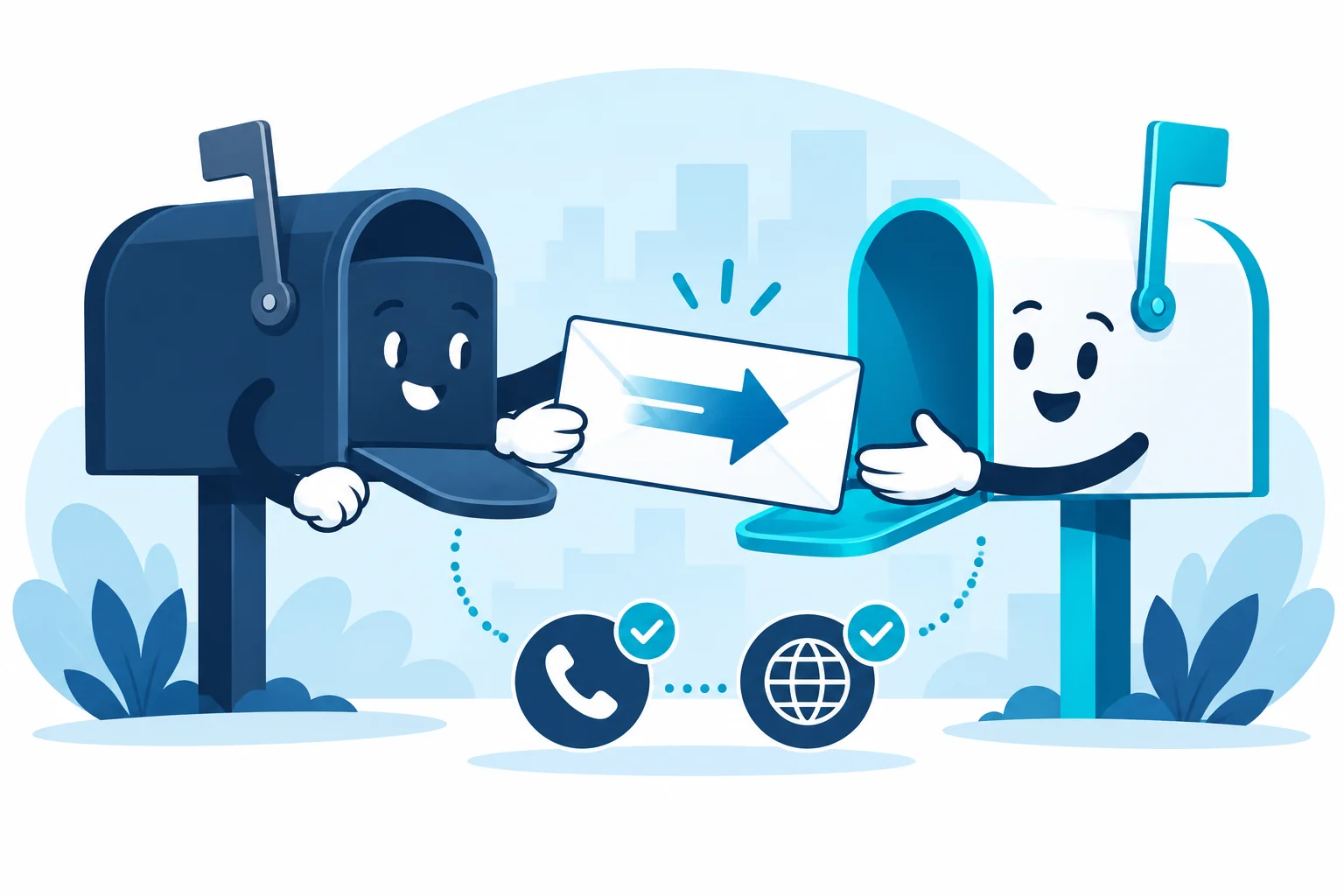
This is the step most rebrands get wrong.
"We've changed our email address, please update your records" is a sentence criminals use constantly. Your genuine announcement needs to look obviously different.
Do:
- Send the announcement from your old, established address (the one people already trust)
- Name the new domain clearly
- Explain it's part of a rebrand they may already have heard about
- Make it clear your bank details have NOT changed (unless they genuinely have, in which case handle that separately by phone)
- Point to your website, where the change is also announced
- Give a phone number people already know
Don't:
- Ask people to click a link to "confirm" anything
- Combine the domain change with a bank details change
- Send the announcement only from the new domain
Subject: We're now [New Name] - our new email addresses

Hi [Name],

As you may have seen, [Old Name] is now [New Name]. From [date], our
emails will come from addresses ending @newdomain.co.uk.

Nothing else has changed: same team, same phone number ([known
number]) and the same bank details. We will never change bank details
by email. If you ever receive a request to do so, please call us.

Emails to our old addresses will still reach us. You may like to add
@newdomain.co.uk to your contacts or safe senders list.

You can see the announcement on our website at [website].
Step 6: Help Customers Trust the New Domain
People's email systems learn who they trust. Your old domain was in contacts, address books and safe senders lists. Your new domain isn't.
Simple ways to help:
- Suggest people add your new address to their contacts or safe senders (see how to whitelist an email address)
- Keep your sender name consistent across the switch, or clearly linked ("New Name (formerly Old Name)")
- Use the same email signature style and branding, updated
- For important clients, a quick phone call goes a long way
Step 7: Update Every Account Using the Old Address
Gradually change the email address on every online account:
- Banking and payment services
- Suppliers and software subscriptions
- Domain registrar and DNS host accounts (important)
- Government and tax services
- Social media and listings
Don't rush this into a single day, but do keep a list and work through it. Prioritise accounts where a password reset going to the wrong place would be serious.
Step 8: Protect the Old Domain Once It Stops Sending
When you've fully moved outgoing email to the new domain, the old one should stop sending entirely. At that point:
- Make sure nothing still sends from it (check DMARC reports)
- Keep receiving mail there if you're still using it as an alias
- Move the old domain's DMARC to p=reject, so nobody can impersonate you using it
If the old domain no longer receives mail either, protect it fully with a deny-all SPF, a rejecting DMARC record and a null MX. See how to protect a parked domain.
What About Your Website?
Usually your web developer handles redirects from the old website to the new one. From an email point of view, just remember:
- Website forms may send email from the old domain until someone updates them
- Make sure form notifications move to the new domain with proper authentication
- Check "From" addresses in your website's email settings
A Worked Example: The Rebrand That Landed in Spam
A fictional Manchester marketing agency rebrands. On launch day, everyone switches their email signature and starts sending from the new domain. The newsletter, invoices and proposals all move at once.
Within a week:
- Proposals to new clients are landing in junk
- The newsletter's open rate collapses
- Two clients ask whether the "we've changed our email" message is a scam
The new domain had SPF but no DKIM in Microsoft 365, and the newsletter platform was still signing with the old domain. And the announcement came from the brand new, unknown domain.
They fix the authentication, re-send the announcement from the old domain with a clear "bank details haven't changed" line, and move the newsletter back to the old domain for a few weeks before transitioning it gradually.
Within a month, things settle. With planning, the first week would have been just as calm.
Should You Keep Sending From the Old Domain at All?
Some businesses keep sending from the old domain for months, others switch overnight. A middle path usually works best:
- Staff start using the new domain for new conversations straight away (once authentication is set up)
- Replies to existing threads can continue from whichever address the conversation started on
- Automated emails (invoices, confirmations) move once each tool's authentication is confirmed for the new domain
- Marketing moves last, gradually
The aim is that customers see a smooth, explained change, not a sudden flood of emails from an unfamiliar address.
Don't Forget Email Signatures, Templates and Auto-Replies
The new domain needs to appear everywhere your old one did:
- Staff email signatures
- Email templates in your CRM, help desk and booking tools
- Out-of-office and auto-reply messages
- Invoice templates and footers
- Website contact pages and forms
A mismatch (new From address, old domain in the signature) looks careless at best and suspicious at worst. Make a checklist and work through it on the same day you start sending from the new domain.
Watch Both Domains' DMARC Reports
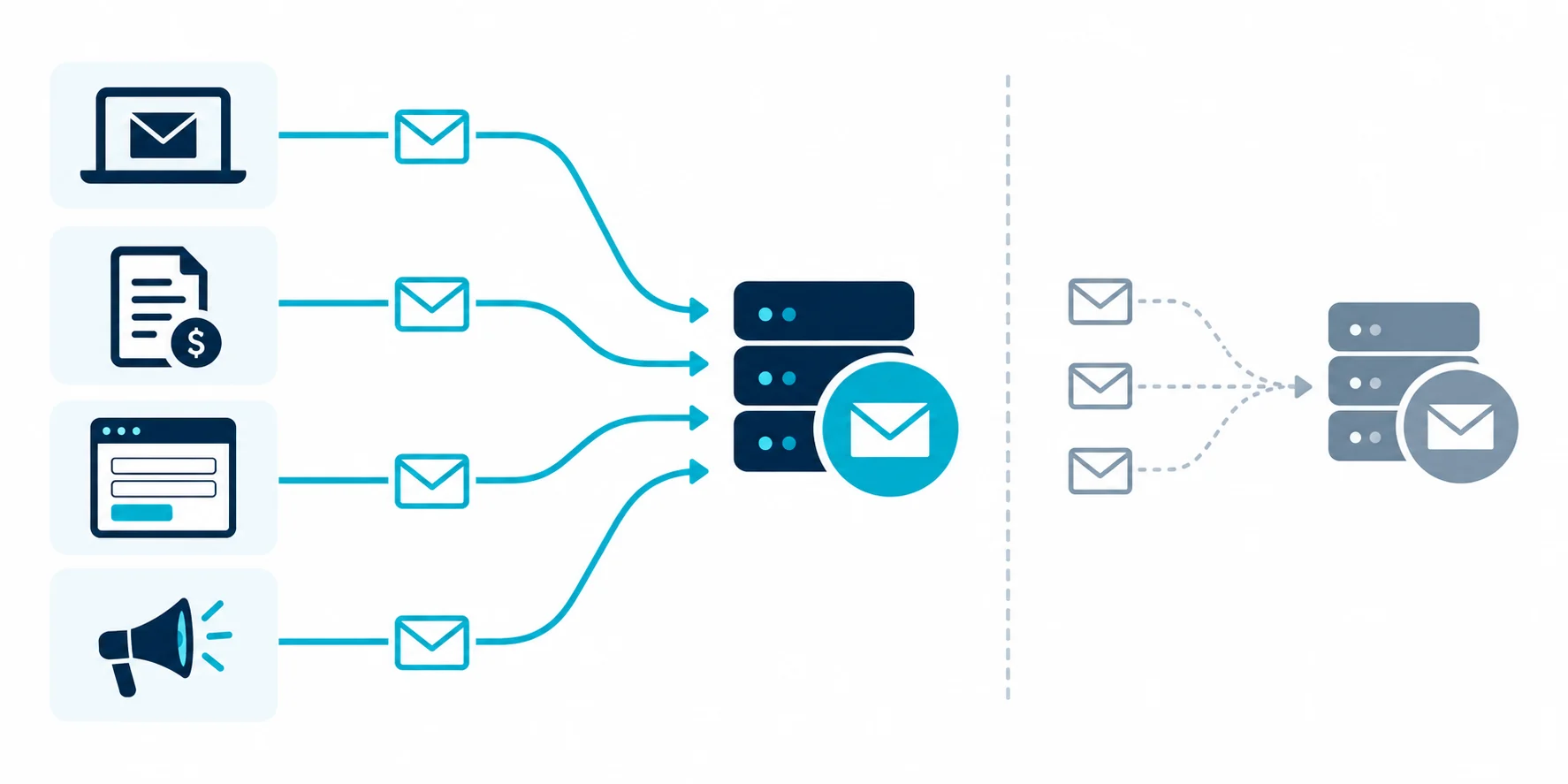
During and after the change, keep DMARC reporting turned on for both domains.
On the new domain, reports show whether every sender is aligned as you move tools across. On the old domain, reports show what's still sending from it, which helps you spot the tools and devices nobody remembered to update.
Once the old domain has gone quiet for long enough, you can tighten its DMARC to p=reject with confidence. See how to read DMARC reports.
The Rebrand Email Checklist
BEFORE LAUNCH
[ ] Old domain set to auto-renew (and renewal date recorded)
[ ] Inventory of every mailbox, tool, device and account on old domain
[ ] New domain added to email provider
[ ] SPF, DKIM (all tools) and DMARC (p=none + reporting) on new domain
[ ] Old domain set up as alias domain (or forwarding) for incoming mail

LAUNCH
[ ] Announcement sent from the OLD address, stating bank details unchanged
[ ] Website updated with the change
[ ] Signatures, templates and auto-replies updated
[ ] Staff begin sending from new domain

AFTER LAUNCH
[ ] Tools moved to new domain one by one, each tested
[ ] Marketing moved gradually, engaged subscribers first
[ ] Online accounts updated to new address
[ ] DMARC reports watched on both domains
[ ] Old domain moved to p=reject once it stops sending
Why New Domains Start With a Blank Reputation
Mailbox providers have years of history with your old domain: it has sent wanted email, people have replied, very few have complained. Your brand new domain has none of that.
From a filter's point of view, a domain that was registered last month and is suddenly sending hundreds of emails a day looks exactly like a spammer's fresh domain. It doesn't know you've simply rebranded.
That's not a reason to panic. It's a reason to:
- Register the new domain as early as you can, even months before the switch
- Set up authentication (SPF, DKIM, DMARC) straight away
- Start sending everyday, one-to-one email from it first (the kind people reply to)
- Introduce newsletters and bulk sending gradually
See how to warm up a new email domain.
The Lookalike Problem: When Your New Domain Looks Like a Scam
Here's an awkward twist. Criminals often register domains that look almost like a real business's domain, then send fake invoices from them.
So when you announce "we've moved from hartleyplumbing.co.uk to hartley-heating.co.uk", a careful customer's finance team might reasonably wonder whether you are the scam.
Make it easy for them:
- Announce the change from your old, known domain first
- Put the new domain on your website, where customers can check it themselves
- Tell customers your bank details have not changed (if they haven't)
- Invite them to call a number they already have if they're unsure
If your bank details are changing at the same time as your domain, separate the two announcements and confirm the bank change by phone. Two big changes at once is exactly the pattern invoice fraud relies on. See fake invoice email with changed bank details.
Grab the Obvious Variations While You're at It
When you register the new domain, consider registering close variations too:
- The .co.uk and .com versions
- The version with and without a hyphen
- Obvious misspellings, if your name is often mistyped
You don't need to use them for email. Just owning them stops someone else using them to impersonate you. Point them at your website, and publish a simple "this domain sends no email" setup on each (an SPF record of v=spf1 -all and a DMARC policy of p=reject).
Frequently Asked Questions
Should I keep my old domain after a rebrand?
Yes. Keep renewing it for years. Old emails, accounts and contacts still use it, and a lapsed domain can be bought and used to impersonate you.
Will emails from my new domain go to spam?
They might at first, because the domain has no history. Set up SPF, DKIM and DMARC before sending, and move email over gradually.
How do I tell customers about a new email domain?
Send the announcement from your old, trusted address. Make it clear nothing else has changed, especially bank details.
Should I forward emails from the old domain to the new one?
An alias domain in your email provider is usually cleaner. If you forward, check it's working reliably.
When can I stop using the old domain?
You can stop sending from it once everything has moved. Keep receiving there as long as people might use it, and keep it protected indefinitely.
Can I keep my old email addresses working after a rebrand?
Yes. Many businesses keep the old domain as an alias so mail sent to old addresses still arrives. Just keep its DNS, renewal and authentication in good order.
Sources and further reading
Related reading
- How to switch email providers without losing email
- How to protect a parked domain
- What sender name should you use for business emails?