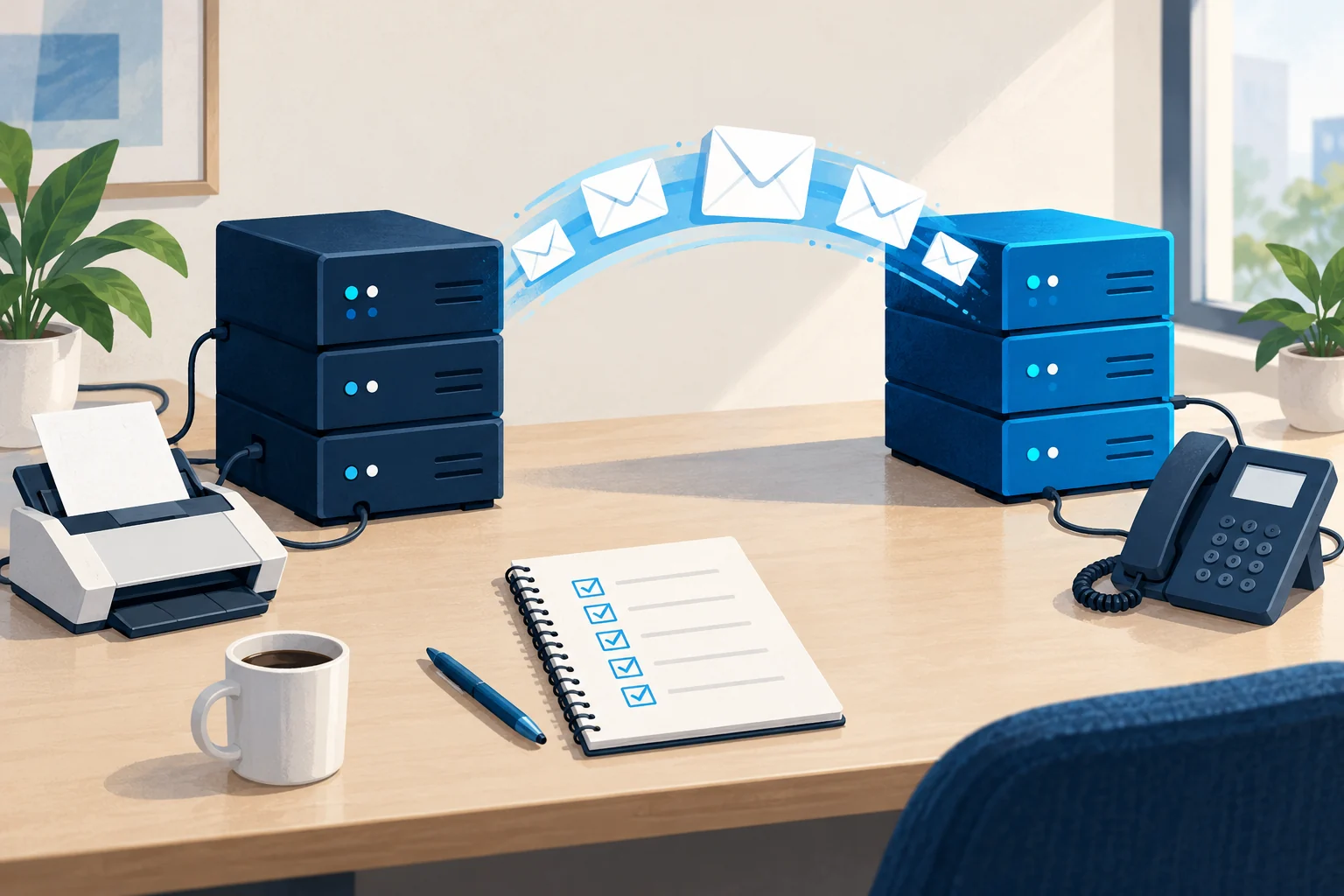
You've decided to move your business email. Maybe to Microsoft 365, maybe to Google Workspace, maybe away from a host that's been letting you down. You want to know how to switch email providers without losing email, and without a week of chaos.
Here's what usually surprises people: moving the mailboxes is rarely the hard part. Migration tools handle that pretty well.
What breaks is everything else. The office scanner that emails scans. The website contact form. The accounting software. The SPF record still pointing at the old provider. The DKIM signing that nobody set up on the new one. The DMARC policy that suddenly starts junking your own emails.
This guide walks you through a switch in the right order, with the forgotten pieces front and centre, so incoming mail keeps arriving, outgoing mail keeps landing and nothing quietly stops working a week later.
The Part Everyone Plans vs the Part That Breaks
What people plan for:
- Creating new mailboxes
- Moving old emails, contacts and calendars
- Changing MX records so new mail arrives at the new provider
What often gets missed:
- Devices and apps that send email through the old provider's servers
- SPF and DKIM for the new provider
- Shared mailboxes, aliases and distribution lists
- Forwarding rules people relied on
- Mobile phones still connected to the old account
- DMARC reports suddenly showing a "new" unaligned source (the new provider)
Step 1: Make a List of Everything That Sends or Receives
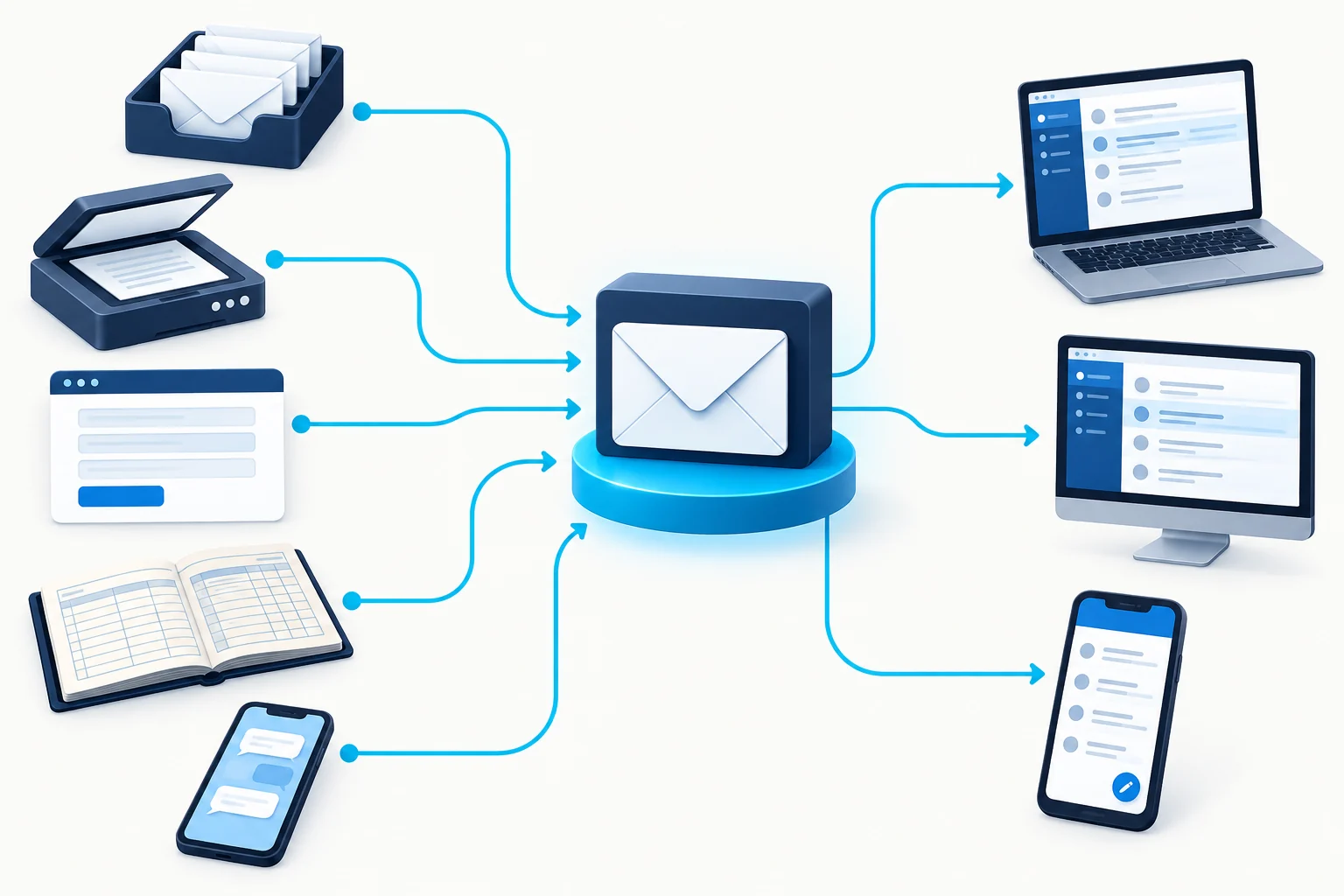
Before touching anything, list:
- Every mailbox (including shared ones like info@, accounts@, sales@)
- Every alias and distribution list
- Every device that sends email (scanners, printers, alarm systems, phone systems)
- Every application that sends through your email account (accounting software, CRM, website form, booking system)
- Every forwarding rule
- Every domain you send from
For apps and devices, find out how they send. If they log in to your current email provider with a username and password to send, they'll break when that account goes away.
The sender inventory template gives you a structure.
Step 2: Check Your DNS Access (Before It's Urgent)
You'll be changing several DNS records. Make sure you can log in to wherever your DNS is actually hosted, which might not be where you bought your domain. See how to find who hosts your DNS.
Save a copy of every current DNS record: MX, SPF, DKIM selectors, DMARC, verification records, and anything else. You'll want to roll back if something goes wrong.
Step 3: Lower Your TTLs a Day or Two Ahead
TTL (time to live) controls how long other servers remember your DNS records. If your MX record has a long TTL, some servers will keep sending to your old provider for longer after you switch.
A day or two before the switch, lower the TTL on your MX records (and any other records you'll change) to something short. Your DNS host's panel usually has a TTL setting per record.
Remember: lowering the TTL only takes effect after the old TTL has expired, which is why you do it in advance.
Step 4: Set Up the New Provider (Before Moving Mail)
- Add and verify your domain with the new provider (usually by publishing a verification TXT record)
- Create all mailboxes, shared mailboxes, aliases and groups
- Set up DKIM for your domain at the new provider, so it signs with your domain from day one (see how to set up DKIM in Microsoft 365 or Google Workspace)
- Prepare your new SPF record
Step 5: Update SPF to Cover Both (Temporarily)
During the switch, emails might go out from both the old and new provider. Update your SPF record to include both, in a single record:
v=spf1 include:oldprovider.example include:newprovider.example ~all(Use each provider's actual include value.)
Never create a second SPF record. Two records break SPF for everything. See the SPF record guide for Microsoft 365 and Google Workspace.
Step 6: Move the Old Email

Use the new provider's migration tools (or a trusted migration service) to copy old emails, contacts and calendars. Many tools can run a first copy before the switch and then a final catch-up afterwards.
Agree with staff what will move and what won't (very old archives, for example).
Step 7: Switch the MX Records
This is the moment incoming mail starts going to the new provider.
- Replace the old MX records with the new provider's MX records
- Don't leave old MX records alongside new ones (mail could be split between both)
- Do it at a quiet time, with someone available to watch
Then check:
dig +short MX yourbusiness.co.ukYou should see only the new provider's mail servers.
Step 8: Reconnect Every Device and App

Go through your list from Step 1. For each device or app that sends email:
- Update its settings to send through the new provider (or through a dedicated sending service)
- Test that it sends successfully
- Check the received email's authentication (SPF, DKIM, DMARC)
Scanners and older devices are the usual troublemakers. Some can't use modern login methods, and the new provider may need a specific setup (like an SMTP relay or a connector) for them. Check the new provider's guidance for devices and applications.
Step 9: Watch Everything for a Week
- Ask staff to report missing emails immediately
- Check DMARC reports for new sources failing authentication
- Test sending from every route again after a few days
- Keep the old provider's account active for a short overlap period, in case of stragglers
Step 10: Clean Up the Old Provider
Once you're confident nothing depends on the old provider (usually after a couple of weeks):
- Remove the old provider's include from your SPF record
- Remove the old provider's DKIM selectors from DNS
- Cancel the old service (after confirming all data you need has moved)
- Raise TTLs back to normal values
- Update your sender inventory
Leaving the old provider in SPF keeps them authorised to send as you indefinitely. Leaving old DKIM keys keeps a signing route open you no longer control.
Don't Forget DMARC
If your DMARC policy is at quarantine or reject, an unaligned new provider could see your own staff email junked or rejected from day one.
That's why DKIM at the new provider comes before the MX switch. Check a test email from the new provider shows dkim=pass for your domain and dmarc=pass before you move everyone over.
A Worked Example: The Move That Broke the Scanner
A fictional Lincoln estate agency moves from its web host's email to Google Workspace. The migration tool moves every mailbox perfectly. MX records switch over. Everyone celebrates.
On Monday, nobody can scan documents to email. The office scanner was logging in to the old host's mail server to send scans, and that account no longer exists.
On Wednesday, a client mentions that viewing confirmations have stopped arriving. The property software was also sending through the old host.
On Friday, someone notices DMARC reports showing Google sending email that doesn't align. DKIM was never set up in Google.
None of it was hard to fix. All of it was avoidable with a list made before the switch.
A Printable Checklist
BEFORE
[ ] Inventory: mailboxes, shared, aliases, devices, apps, forwarding
[ ] DNS access confirmed and all records saved
[ ] TTLs lowered 1-2 days ahead
[ ] New provider set up, domain verified, mailboxes created
[ ] DKIM configured at new provider and tested
[ ] SPF updated to include both providers (one record)

SWITCH
[ ] Mail migrated (first pass)
[ ] MX records replaced with new provider's only
[ ] MX checked in public DNS

AFTER
[ ] Every device and app reconnected and tested
[ ] Final mail catch-up migration
[ ] Staff phones reconnected
[ ] DMARC reports checked for failing sources
[ ] Old provider removed from SPF (after overlap)
[ ] Old DKIM selectors removed (after overlap)
[ ] Old account cancelled
[ ] TTLs restored
Moving Shared Mailboxes, Aliases and Groups
Shared mailboxes (info@, accounts@, sales@), aliases and distribution groups are easy to overlook, and they're often the addresses customers use most.
For each one, record:
- Is it a real shared mailbox, an alias on someone's account, or a group that forwards to several people?
- Who needs access?
- Does any system send from it?
- Do customers reply to it?
Recreate each one at the new provider before switching MX, using the same type where possible. Test that mail sent to each address arrives in the right place after the switch.
Mobile Phones and Desktop Apps
Staff phones and laptops connected to the old account will keep trying to use it. Some will show errors. Others will quietly stop syncing, so people think everything's fine until they notice they haven't had an email in two days.
Plan for:
- Removing the old account from phones and email apps
- Adding the new account
- A quick check with each person that new mail arrives and sends
A simple instruction sheet for staff, sent before switch day, saves a lot of confused messages.
What Your DMARC Reports Will Show During a Switch
If you're receiving DMARC reports, you'll see the switch happen:
- A new source appears (your new provider's servers)
- If DKIM is set up at the new provider before the switch, that source shows aligned passes from day one
- The old provider's volume fades as people stop using it
- Any device still sending through the old provider keeps appearing, which is useful for spotting stragglers
Watching reports for a few weeks after the switch is one of the best ways to catch forgotten senders. See how to read DMARC reports.
Planning the Timing
Choose a switch time that suits your business:
- A quieter period, not month-end or a busy sales day
- When someone with DNS access and admin access is available for a few hours afterwards
- Not right before a holiday when nobody's around to fix things
Many small businesses switch on a Friday afternoon or weekend, so the MX change has time to settle before a busy Monday. That works well, as long as someone can respond if something breaks.
The Overlap Week: Why Running Both Providers Saves You
The safest switches have a period where both the old and new provider are active at the same time.
During that overlap:
- New email arrives at the new provider (once MX records change)
- Some email may still trickle into the old provider (from servers that remember the old MX records for a while)
- Staff can still check the old mailbox for anything that slipped through
That's why cancelling the old service on switch day is so risky. Keep it running for at least a week or two, and check it daily for stray messages. Only cancel once the old mailboxes have been quiet for several days and your migration is confirmed complete.
DKIM During the Switch: The Bit People Forget Until Week Two
Your old provider signed your email with its own DKIM keys. Your new provider needs its own.
A common sequence of events:
- The business switches MX records and starts sending from the new provider
- Everything seems fine on day one
- Over the next week or so, more emails start landing in junk, especially at Outlook.com and Gmail
- Someone finally checks and finds the new provider was never set up to sign with the business's domain
Set up DKIM at the new provider before you start sending from it. For Microsoft 365 that means publishing the selector1 and selector2 CNAME records and enabling signing; for Google Workspace it means publishing the google._domainkey record and clicking "Start authentication". See how to set up DKIM in Microsoft 365 and Google Workspace DKIM setup.
Leave the old provider's DKIM records in place until the old service is fully gone. They do no harm, and they keep any last emails from the old system passing.
Telling Staff What to Expect
Most of the stress in an email switch comes from people not knowing what's happening. A short message to staff a few days before helps enormously:
Subject: Our email is moving on [date]

Hi all,

On [date] we're moving our email to [new provider].

What you need to do:
- On [date], you'll get a new sign-in. Use it on your phone,
  laptop and any email app.
- Your old emails will be copied across over the following days.
- If you see anything odd (missing emails, sending errors),
  tell [name] straight away.
- Don't delete anything from the old system yet.

Thanks for your patience!
Name one person as the point of contact. Problems reported early are far easier to fix than problems discovered a month later.
Frequently Asked Questions
Will I lose emails when I change MX records?
Not if you plan it. Lower TTLs in advance, switch at a quiet time and keep the old account active briefly so stragglers aren't lost.
How long does it take for new MX records to work?
Once published, most servers pick them up quickly, but some will use cached old records until the previous TTL expires. That's why you lower TTLs ahead of time.
Do I need to change my SPF record when switching providers?
Yes. Include the new provider, temporarily keep the old one during the overlap, then remove the old one. Always one SPF record.
Why did my scanner stop working after switching email?
It was probably sending through the old provider's mail server. Reconfigure it to send through the new provider or a suitable relay.
Should I set up DKIM before or after moving MX records?
Before. That way, emails from the new provider pass DMARC from the very first day.
Can I switch email providers without any downtime?
Usually, yes, if you set up the new provider first, lower TTLs ahead of time and keep the old provider running during the overlap. Brief delays are possible, but lost email is avoidable.
What if I don't know who controls my DNS?
Find out before you start, because you can't switch MX records without it. See how to find who hosts your DNS.
Sources and further reading
- Microsoft Learn: Set up DKIM for Microsoft 365
- Google Workspace Admin Help: Set up DKIM
- Google Workspace Admin Help: Set up SPF
- RFC 7208: Sender Policy Framework
Related reading
- Changing your business domain name: an email checklist
- Sender inventory template
- How to find who hosts your DNS